Google My Business is's werelds meest gebruikte service voor bedrijfsvermeldingen. Door uw bedrijfsvermelding op Google Maps en Google Search te tonen, kunt u: uw lokale en wereldwijde zichtbaarheid verbeteren, uw kansen om zaken te krijgen drastisch verbeteren en u helpen beoordelingen te krijgen.
Basisprincipes van sociale media
3 minuten leestijd
Inhoudstafel
Een social media strategie bepalen
Een strategie implementeren
De basis van een bedrijfspagina
Je aantal volgers doen groeien
Design templates
Je werknemers inzetten
Social media analytics
LinkedIn Ads
Google My Business
Bonus: Website basics
Als je al een Google Mijn Bedrijf-pagina hebt ingesteld, scroll dan naar beneden naar de extra bronnen om andere nuttige artikelen te ontdekken!
Word gevonden op Google
Tegenwoordig willen B2B-kopers vooral naar u op zoek gaan in plaats van dat u contact met hen opneemt. Je moet dus heel gemakkelijk gevonden kunnen worden voor mensen die actief op zoek zijn naar jou of je diensten.
GMB maakt uw bedrijfsvermelding zichtbaar voor mensen die in de stad/stad wonen waar u zaken doet.
Maakt het makkelijker om in contact te komen met
Je potentiële klanten zoeken naar iets op Google wanneer ze producten willen kopen.
Google My Business maakt het mogelijk om ze uw
🌐 website
☎️ contactnummer
🌂 populaire producten
⭐ beoordelingen van klanten
Je zoektermen
GMB vertelt je wat iemand in Google heeft getypt om je te vinden in de zoekresultaten.
Hiermee kun je:
📈 optimaliseer je website voor deze voorwaarden
💰 advertenties op Google weergeven met behulp van deze zoektermen
Wat zijn de stappen die je moet nemen om Google My Business in te stellen?
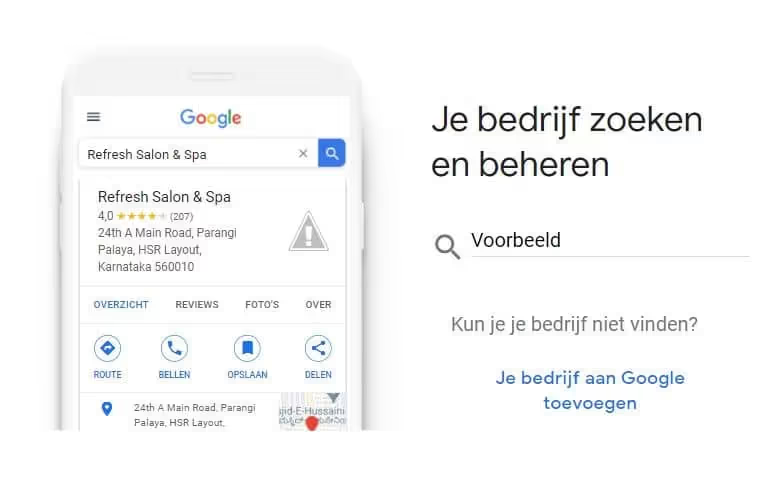
Zoek naar je bedrijf of richt een bedrijf op met die naam.
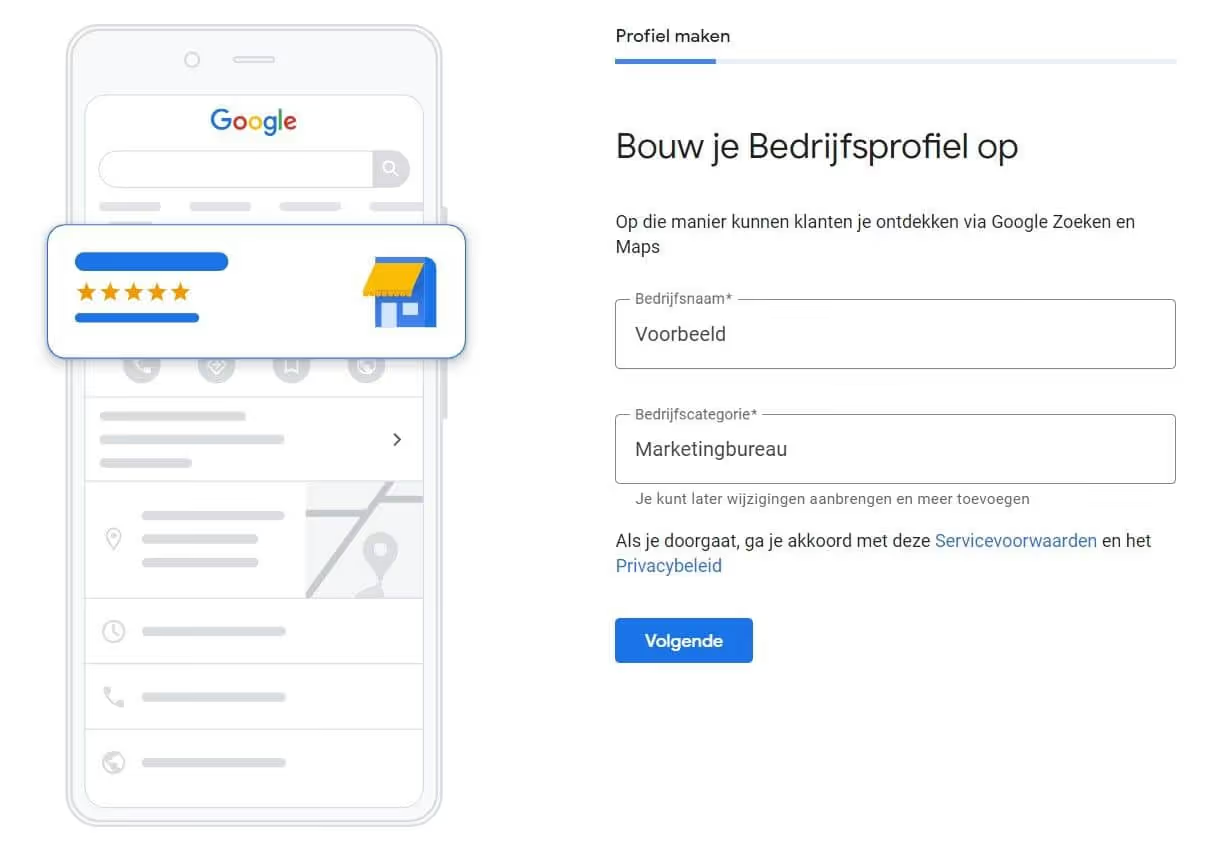
3. Voeg je bedrijfscategorie in
Bedrijfscategorieën
Google somt alle categorieën op waar je doorheen kunt zoeken. Zoek de jouwe en druk op Next.
4. Voer je bedrijfslocatie in
Google Mijn Bedrijfslocatie
Voer in waar je bedrijf is gevestigd. Als je geen winkel bent, maar de diensten rechtstreeks aan je klant levert, kun je ervoor kiezen om je adres te verbergen.
U kunt verder vermelden hoe ver van uw locatie u uw goederen of diensten aflevert.
Hoe ver je bedrijf presteert
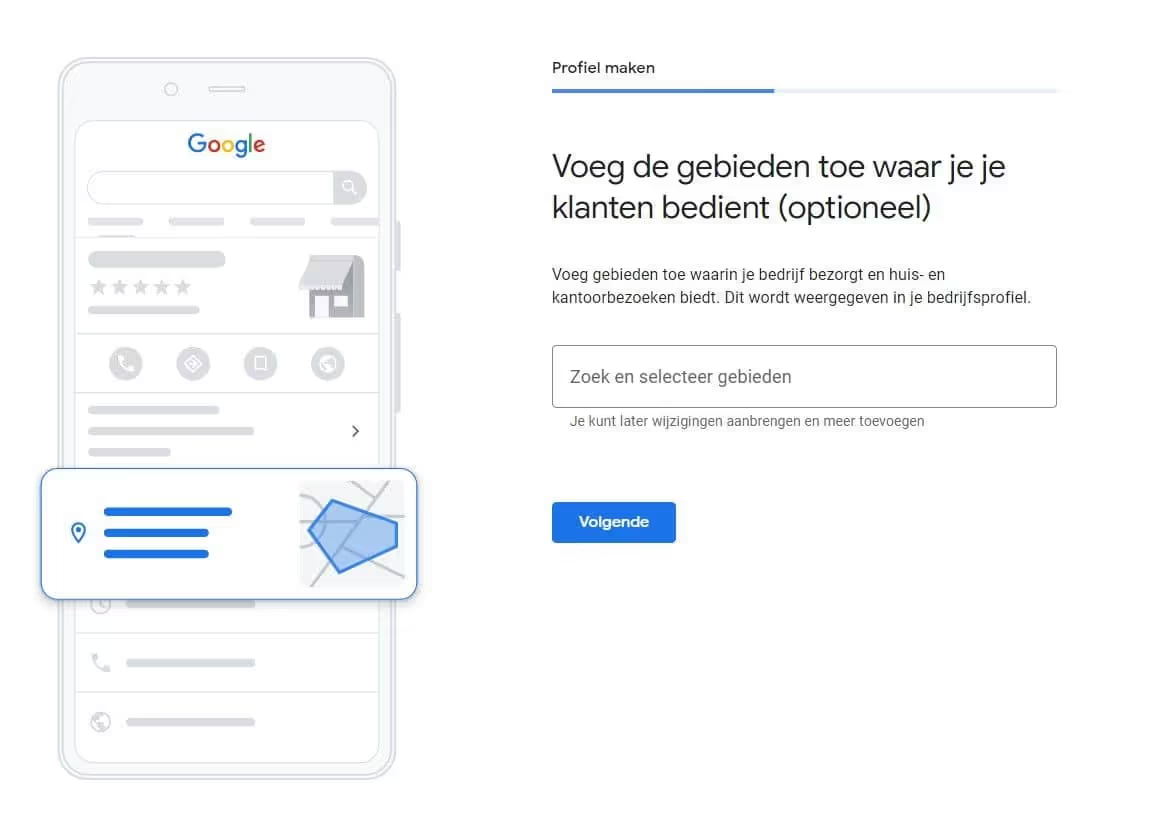
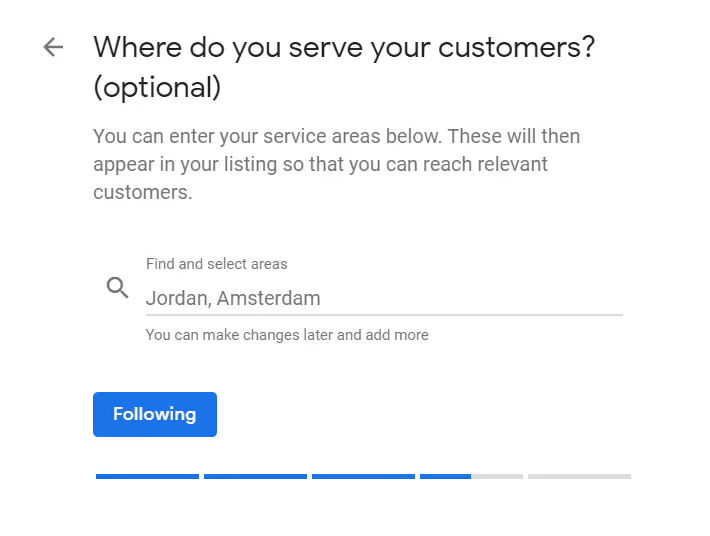
5. Voer in waar je klanten zich bevinden
Locatie van je klanten
Als je je diensten in andere dorpen en steden levert, kun je ze hier vermelden, zodat wanneer ze vanuit die stad naar je zoeken, je advertentie mogelijk wordt weergegeven.
6. Laat je als bedrijf verifiëren door Google
Verificatiestatus
Ten slotte moet u ervoor zorgen dat Google uw bedrijf verifieert, zodat Google weet dat u een echt bedrijf bent.
Als je helemaal opnieuw begint, kan Google je vragen om je postadres in te voeren.
Meestal ontvang je binnen ongeveer 5 dagen tot een week een ansichtkaart met een 5-cijferige code erop. Je logt in op je Google Mijn Bedrijf, selecteert een locatie en klikt vervolgens op 'Nu verifiëren'.
Voer in het daarvoor bestemde veld de 5-cijferige code in en druk op 'Verzenden'.
7. Vul je profiel in
Nu je je Google Mijn Bedrijf hebt ingesteld, is het belangrijkste dat je deze up-to-date houdt.
ℹ️ Ga naar je Info-tabblad en vul alle benodigde velden in, waaronder je locatie, openingstijden, belangrijke links, website enz.
🦠 Voeg belangrijke informatie toe over je beschikbaarheid tijdens crises.



.avif)


