
How to Tag People and Companies on LinkedIn
Having problems with tagging people or organisations on LinkedIn? Here's how to tag someone in a post, a comment, and an image, both natively on LinkedIn and via social media scheduling tools.


Tagging means mentioning someone by typing the @ symbol followed by their name. This creates a clickable link to their profile or page and notifies them of your post. You can tag both individuals and company pages.
This is a simple yet powerful way to increase visibility, drive engagement, and build professional relationships. Whether you're sharing a team update, announcing a collaboration, or commenting on someone else’s post, tagging helps bring relevant people or businesses into the conversation.
How do I tag someone on LinkedIn?
To tag a person in a LinkedIn post:
- Start writing your post.
- Type the "@" symbol, then begin typing the person’s name.
- Select the correct profile from the dropdown menu.
- Their name will appear as a clickable blue link in your post.
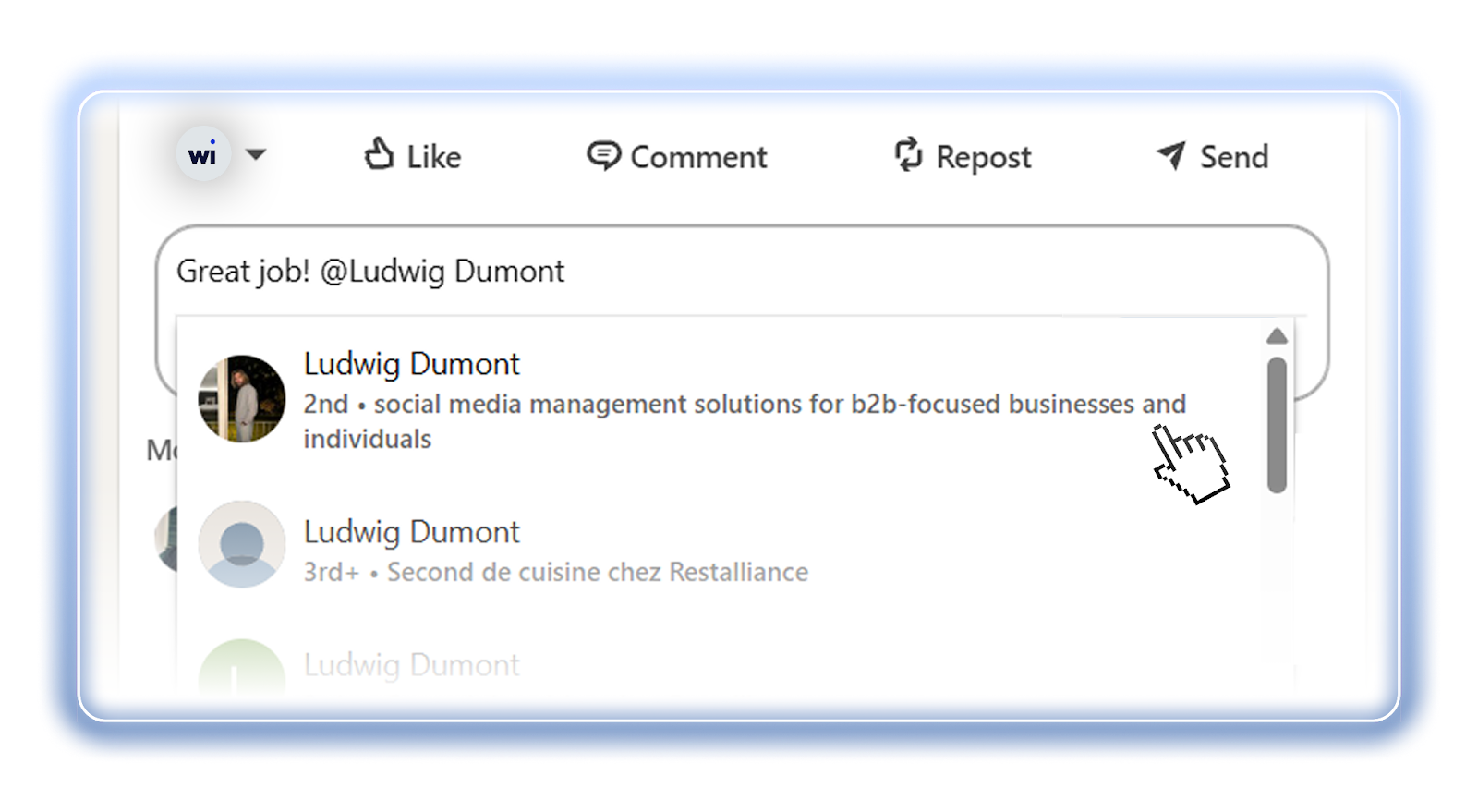
This works for both personal profiles and company pages.
Pro tip: Always double-check the person’s photo and job title in the dropdown to make sure you’re tagging the right profile—especially if they have a common name.
Can you tag people in images or videos?
Yes, you can tag people in images on LinkedIn, but only at the time of posting. Once the image is published, you can no longer add or change tags. Editing is limited to updating the text or the alt text of the image.
To tag someone in an image:
- Upload your image in the post composer
- Click the "Tag people" option in the image thumbnail
- Start typing their name and select the correct profile
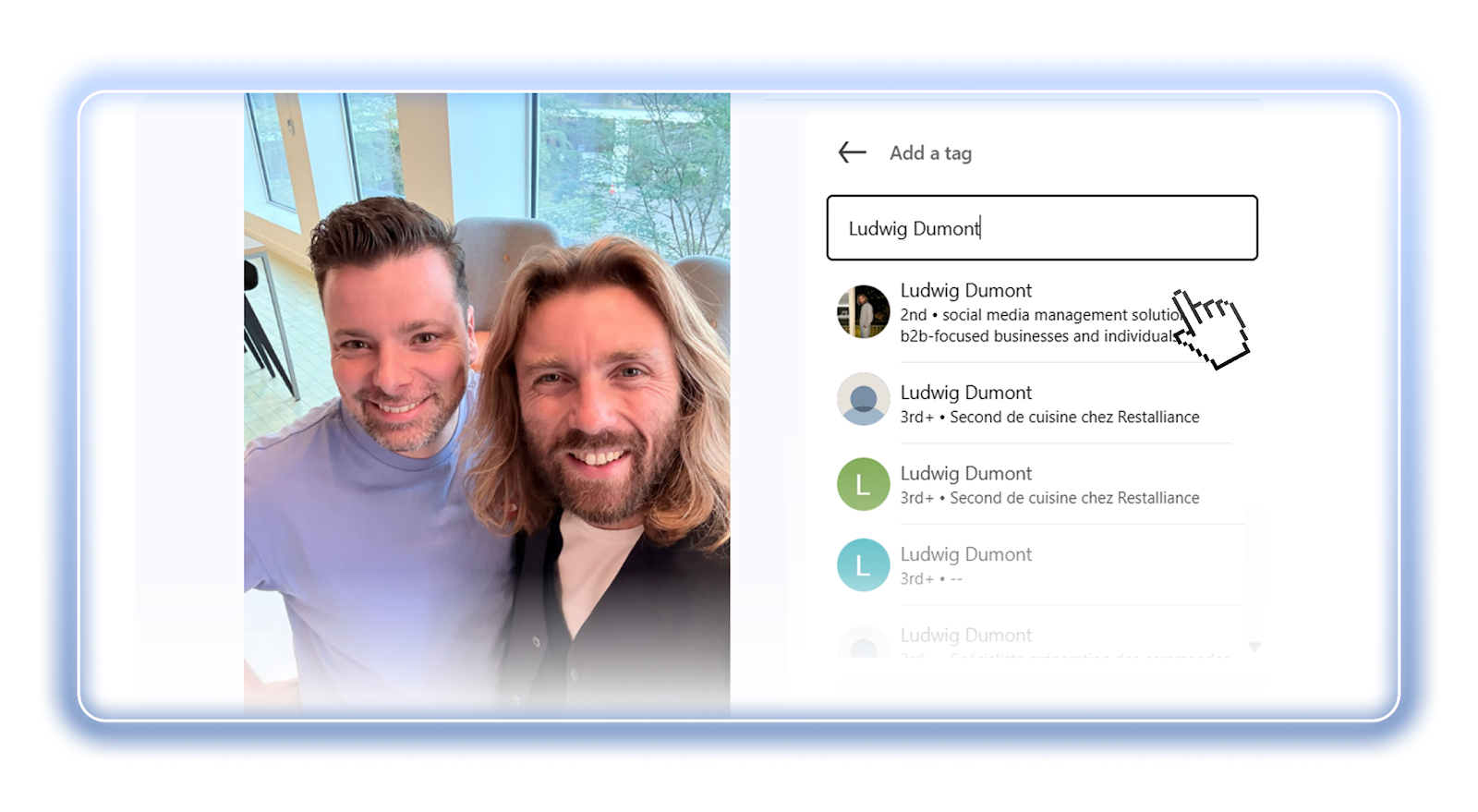
Tagging in videos, on the other hand, is not currently supported. You cannot tag people directly in a video, whether during upload or afterwards. However, you can still tag them in the accompanying caption or in the comments.
What if tagging doesn't work?
Sometimes, tagging doesn’t work even when (it seems like) you’re doing everything right. The reasons can range from simple typos to platform limitations. Understanding these can save you a lot of frustration.
Common issues with tagging on LinkedIn
- The profile or page has privacy settings that prevent tagging
- You've made a typo in their name
- You’ve selected the wrong profile
- LinkedIn’s app or browser version is experiencing a temporary glitch
If you’re using a social media scheduling tool, be aware that these platforms often have their own limitations. In many tools, you can only tag people who follow your company page, or in some cases, only first-degree connections. These restrictions can limit who appears in the dropdown when you type “@.”
However, Willow makes this much simpler. With Willow you can tag almost anyone on LinkedIn. The only restriction is the person’s LinkedIn privacy settings. If they allow tagging, you can tag them.
FAQ
How to tag someone on LinkedIn?
To tag a person on LinkedIn, type "@" followed by their name in your post or comment. Choose the correct profile from the dropdown list. If their name doesn’t appear, they do not allow mentions.
How to tag someone on LinkedIn after posting?
To tag someone on LinkedIn after your post has been published, you need to edit the original post. Click the three dots in the top-right corner, then “edit post”. You can now edit the text and add the tag using "@" and their name. Finally, save the changes.
How to tag someone on LinkedIn in a comment?
To tag someone in a comment on LinkedIn, just write "@" and start typing their name in the comment box. Select the right person or company name from the dropdown.
How to tag a person on LinkedIn with a social media scheduling tool?
To tag people on LinkedIn via a scheduling tool, you’ll need to type their name, or (part of) their url. But your options will be limited because most tools have restrictions. For example, you can only tag followers of your company page or 1st degree connections. Willow, however, allows you to tag anyone on LinkedIn, apart from people who disabled mentions in their privacy settings.
How to tag a company on LinkedIn?
To tag a company page on LinkedIn, type "@" followed by the company, organisation, or business name. Select the correct LinkedIn company page from the dropdown.
How to tag a company page on LinkedIn with a social media scheduling tool?
Tagging a company page via a scheduling tool works a lot like tagging a company natively, but sometimes you’ll need (part of) the company page url instead of the company name.
How to tag someone in a LinkedIn photo?
To tag someone in an image on LinkedIn, open the composer and upload your image. Below the image, you’ll find a person icon. Click this to open a menu where you can look for the people you want to tag.
How to tag someone on a LinkedIn photo after posting?
You can’t tag within the photo itself once it’s been posted, but you can still edit the text of your LinkedIn post.
How to allow people to tag you on LinkedIn
To let other people tag you on LinkedIn, click your profile image and then select “settings and privacy”. In the “visibility” tab, scroll to the second-to-last option that says “mentioned by others”. Open this to allow or disallow mentions.
How to remove your name from a post you’ve been tagged in?
If someone tagged you in a post that you don’t want to be mentioned in, go to that post and click the three dots in the top-right corner. Now click “@ remove mention”.