
How to export a PDF carousel from Canva for LinkedIn
Step-by-step guide to exporting PDF carousels from Canva and scheduling them on LinkedIn via Willow.
PDF carousels are one of the best-performing content formats on LinkedIn. They're swipeable, eye-catching, and great for sharing tips, frameworks, or step-by-step guides. Once you've designed your carousel in Canva, here's how to export it as a PDF and schedule it on LinkedIn through Willow.
Before you export: recommended Canva settings
- Use a size of 1080 x 1080 px (square) or 1080 x 1350 px (portrait) for the best LinkedIn experience
- Keep text large and readable because most people will view your carousel on mobile
- Use consistent branding (colors, fonts, logo) across all slides
- Aim for 5–10 slides: enough to tell a story, not so many that people drop off
How to export your PDF carousel from Canva
Step 1: Click "Share"
Open your finished design in Canva and click the Share button in the top-right corner.

Step 2: Select "Download"
From the dropdown, choose Download.

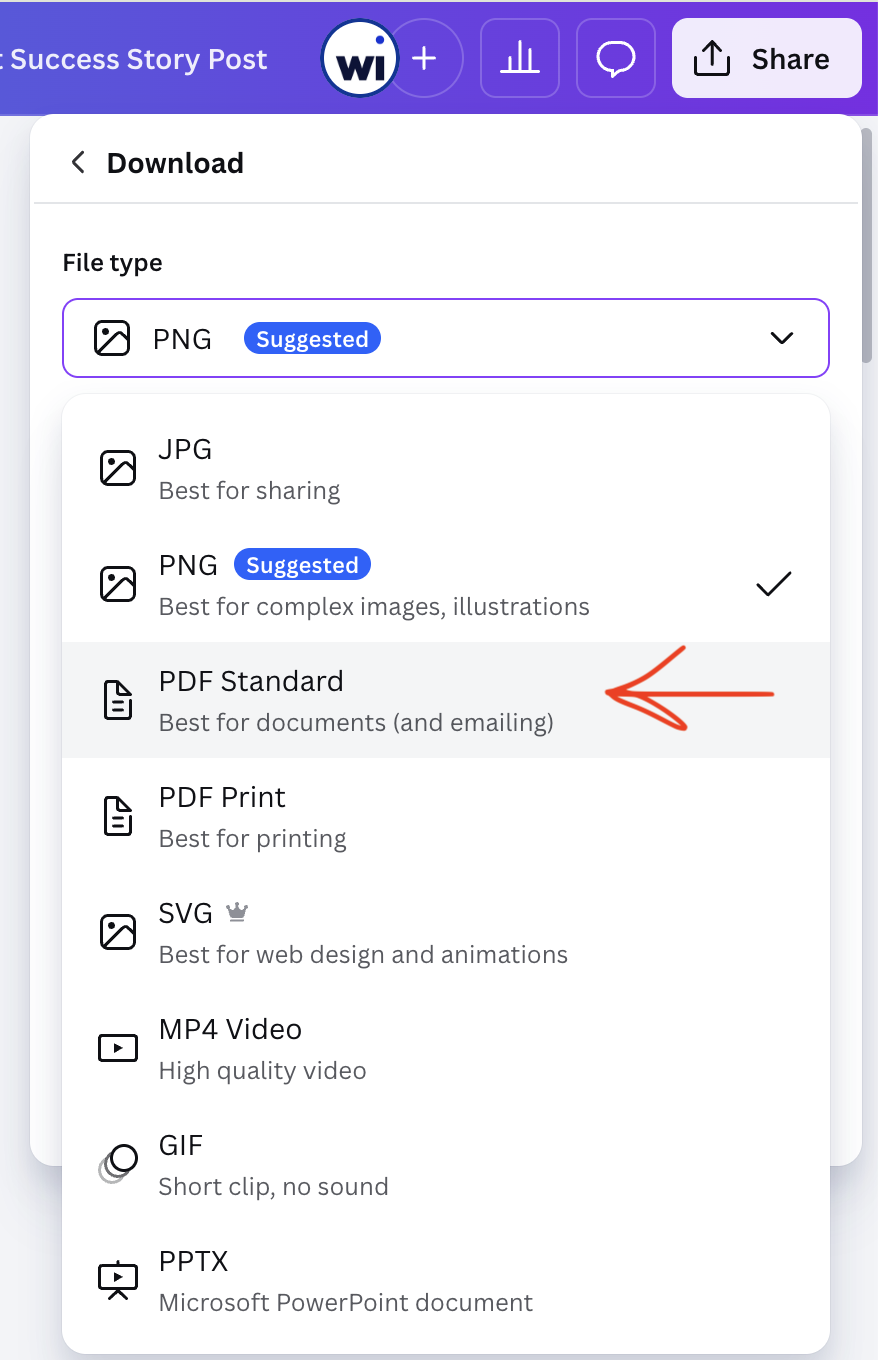
Step 3: Choose "PDF Standard"
Select PDF Standard as the file type. This keeps the file size small while maintaining good quality — ideal for LinkedIn. Only use PDF Print if you need high-resolution output for offline use.
Step 4: Select your pages
Choose which slides to include. You can export all pages or select a specific range if you only want part of your design.

Step 5: Download
Click Download and save the PDF to your computer. You're now ready to upload it to Willow.
Schedule your PDF carousel on LinkedIn via Willow
Now that your PDF is exported, head over to willow and open the post creator:
- Click the PDF icon in the toolbar, or simply drag and drop your file into the upload area.
- Write your caption, pick your date and time, and schedule.

Note: PDF carousels are a LinkedIn-only format. Make sure only your LinkedIn profile or company page is selected when uploading a PDF. If other channels are active, Willow will prompt you to deselect them first.
Tips for high-performing LinkedIn carousels
- Hook on slide 1: use a bold statement or question to stop the scroll
- One idea per slide: keep it scannable and focused
- End with a CTA: ask people to follow, comment, save, or visit a link
- Stay under 100 MB: PDF Standard keeps you well within LinkedIn's file size limit
- Preview on mobile: check readability before publishing